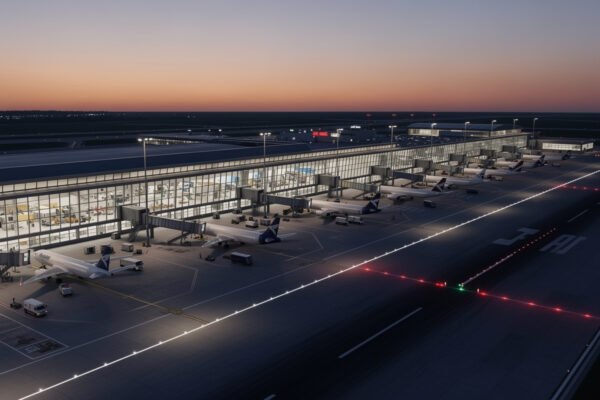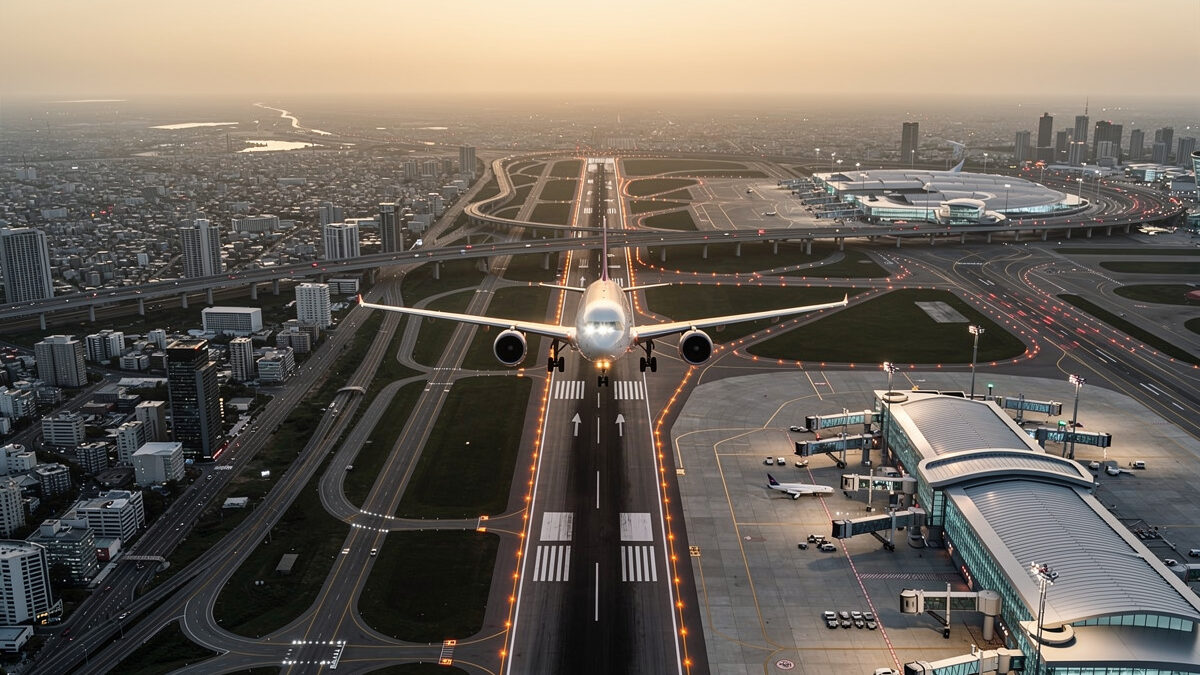
The best airports in flight sim sit where photogrammetry, hand-crafted detail, and a free World Update overlap, and roughly 80% of that immersion costs nothing. On my deck, the fields I keep flying into have custom ground polygons, animated jetways, and a real city below the approach.
Here is the part the marketplace never tells you: that single overlap does more for immersion than any controller I have ever bought, and most of it is free. I have spent years rebuilding my flight-sim world layer the same way I rebuild my racing rig — one upgrade at a time, judged by what it does at hour three of a long-haul, not by storefront screenshots. This guide is the map I wish I had when I started buying scenery blind. To be clear up front: this is a hobby about immersion and enjoyment. None of it makes you a real pilot, and nothing here is real-world airport operations. It is about making the screen worth staring at.
What Actually Makes a Flight Sim Airport Good?
A genuinely good flight sim airport combines four things: accurate ground layout, custom 3D buildings with interior detail, working dynamic elements (jetways, marshallers, lighting), and a surrounding region that holds up on approach. Stock MSFS 2024 airports nail the first item and fake the rest with generic templates.
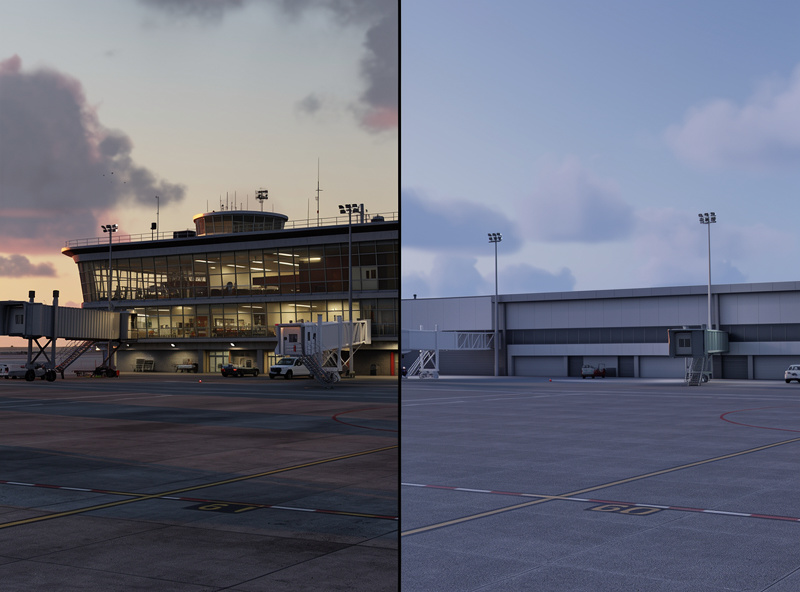
The gap shows on final. A stock field gives you a flat satellite-texture apron and box-shaped terminals that pop in late. A well-made airport gives you taxiway centerline lights that actually guide you, terminal glass that reflects the sunset, and ground crew that wave you in. The difference is not subtle once you have flown into both. I tell people to fly one approach into a stock major hub and then the same approach into a hand-crafted version of it — the immersion delta is the whole hobby in two flights.
The second-order factor most buyers miss is performance cost. A dense payware airport with thousands of custom objects can cost you 15-20 frames per second on approach if your PC is already near its limit. The best airport is the one your hardware can render smoothly while you are also fighting a crosswind.
There is also a craftsmanship tell that separates the great airports from the merely detailed ones: night lighting. Anyone can model a terminal, but getting the apron floodlights, the taxiway edge lights, the PAPI on the threshold, and the terminal interior glow to all read correctly after dark is genuinely hard. When I am evaluating whether an airport is worth keeping, I fly one night approach into it. If the lighting guides me down convincingly and the ramp glows the way a real ramp does, it stays. If it goes dark and lifeless at dusk, it gets pulled — because half my flying happens after sunset, and a field that only looks good at noon is doing half a job.
Free Scenery vs Payware Scenery: Where the Money Goes
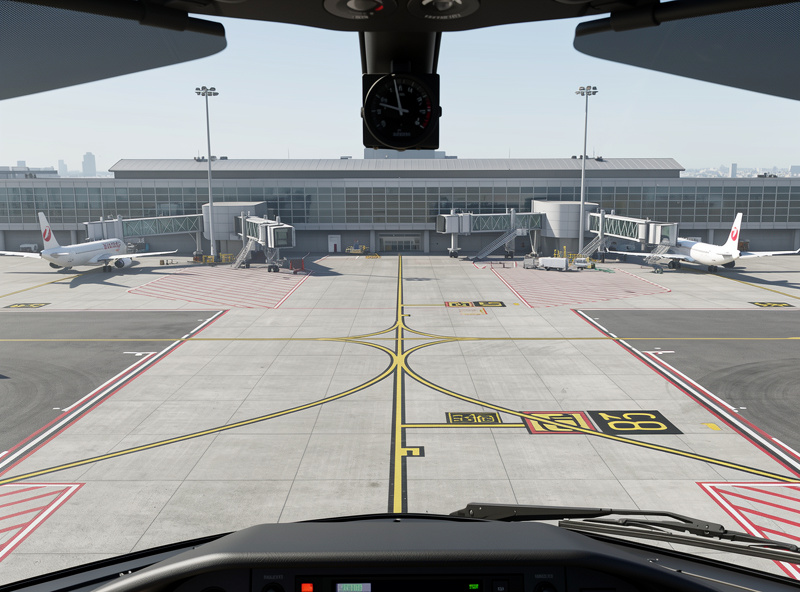
Free scenery covers roughly 70-80% of the immersion most simmers want, and the remaining 20-30% — interior modeling, perfectly accurate ground layouts, dynamic detail — is what payware sells. For a brand-new simmer, freeware should be the entire first six months of scenery buying.
The freeware ecosystem around MSFS 2024 is extraordinary. Community modders have built thousands of airports, and the best of them rival paid work from a few years ago. My honest verdict from the deck: install ten well-reviewed free airports before you spend a single krona, because most people discover that free coverage of their home region scratches the itch entirely. The wider freeware scenery scene goes well beyond airports, too.
Payware earns its price in two narrow cases. First, your single most-flown airport — the one you start every session at — is worth paying for, because you will see that detail thousands of times. Second, study-grade airports with modeled service vehicles and accurate signage matter if procedural realism is your thing. I dig into exactly when that math works in my breakdown of whether payware airports are worth it. Outside those two cases, payware airports are often procrastination dressed as preparation.
How Photogrammetry Changes the World Outside the Airport
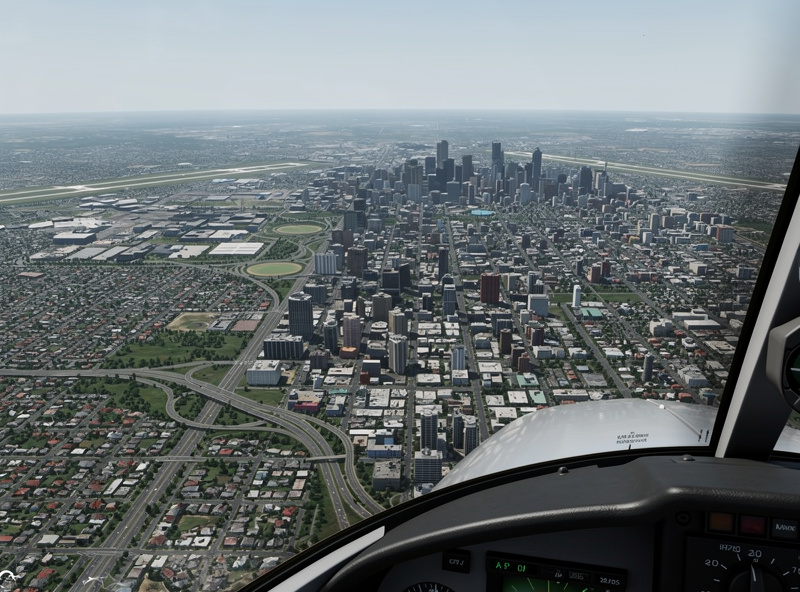
Photogrammetry rebuilds entire cities from aerial 3D scans instead of placing generic autogen buildings, and in MSFS 2024 it covers around 500 cities worldwide. It is the single biggest reason the sim looks like a place instead of a map. Where it exists, the world below your approach is the real city.
The effect is most dramatic on visual approaches into major metros. Flying into a photogrammetry city, you can pick out actual landmarks, recognize neighborhoods, and judge your descent against real terrain massing. Without it, you get plausible-but-fake buildings that read as filler from 3,000 feet. Photogrammetry has a melty, smeared look up close at low altitude — that is the known trade-off — but at approach and cruise heights it is transformative.
The catch is bandwidth and VRAM. Photogrammetry streams large amounts of data, so it leans hard on a fast connection and a GPU with generous video memory. On my frame-time logs, photogrammetry cities are where an 8GB card starts stuttering and a 12GB-plus card stays smooth. If you are building a sim PC for this layer, that is the spec that matters most — I cover the exact card and VRAM tiers in the flight sim PC build guide. For the full mechanics of how it works, see my photogrammetry scenery explainer.
What Are MSFS World Updates and Are They Worth Installing?
World Updates are free regional overhauls from Asobo that add photogrammetry cities, improved terrain mesh, hand-crafted points of interest, and bundled freeware-quality airports for a specific country or region. They are the best free scenery you can install, full stop.
Each World Update targets a region — a country or group of countries — and rebuilds it with higher-resolution data, corrected coastlines, seasonal accuracy, and a set of detailed landmarks. Because Asobo sources better aerial imagery and elevation data for these, the upgrade over the base region is dramatic and costs nothing beyond the download. I install every World Update for regions I fly, no hesitation.
What surprised me most when I started installing them systematically is how much the terrain mesh alone changes a flight. Better elevation data means ridgelines sit where they actually sit, valleys have the right depth, and a mountain approach demands the same descent profile the real terrain would. A World Update is not just prettier buildings — it is a more honest world to fly through, and that is the part you feel rather than screenshot. The bundled landmarks are the cherry on top: hand-built bridges, stadiums, and monuments that give you real visual references on a low-level scenic flight instead of generic autogen blobs.
The strategic point for buyers: never purchase payware scenery for a region until you have checked whether a World Update already covers it. I have watched simmers buy a scenery pack for an area that a free World Update had already rebuilt to a higher standard. I lay out that whole decision in World Update vs add-on scenery. Check the official Asobo content list first, then shop the gaps.
Which Regions Look Best in MSFS 2024?
The best-looking regions combine dense photogrammetry, dramatic terrain, and a completed World Update — which today means the Alps, the Nordic fjords, the US Pacific coast, Japan, and the Italian and Iberian coastlines. These are where the sim shows what it can do.
Terrain drama matters as much as building detail. Mountain regions like the Alps and the fjords look spectacular because the elevation mesh has real vertical relief to render, and the lighting plays across actual slopes. Flat regions, however well-textured, never produce the same gut-punch on approach. My personal favorite long-haul destinations are all coastal-mountain combinations — the contrast of water, cliff, and city is where the engine peaks.
If you are choosing where to fly for pure scenery, prioritize regions that have both a completed World Update and significant photogrammetry coverage. That overlap is rare enough that it is worth planning routes around — I keep a running list in the best-looking scenery regions guide. The Nordic winters, in particular, with low sun angles and snow-loaded terrain, are why my deck earns its keep when the real weather grounds everything outside.
How to Build a Scenery Library Without Wasting Money
The smart sequence is: install all relevant World Updates first (free), then curate freeware airports for your home region (free), then buy payware only for your single most-flown airport. Following that order, most simmers spend under the price of one big payware bundle in their first year.
Start by auditing where you actually fly. Most simmers have a home base and three or four favorite destinations — that is your entire priority list, not the whole planet. Build out those locations to a high standard with free content before considering any purchase, and you will find the sim already looks the way the marketing promised.
When you do buy, buy from the official marketplace or a reputable third-party storefront, check the last update date so you are not buying an abandoned product, and read the performance notes. A scenery pack that looks perfect in screenshots but tanks your frame rate on approach is a worse purchase than a lighter freeware alternative. The whole point is a world you can fly through smoothly, not a slideshow you admire while stuttering toward the threshold.
Default, Handcrafted, and Custom Airports: The Three Tiers
MSFS 2024 ships three quality tiers of airport out of the box, and knowing which you are flying into changes your expectations. Default airports are AI-generated from layout data, handcrafted airports are built by Asobo or partners, and custom airports come from the community or marketplace. Roughly 40 handcrafted airports ship with the sim depending on edition.
The default tier is the floor: correct runway positions, generic terminals, functional but soulless. These are everywhere, and for a field you fly into once they are perfectly fine. The handcrafted tier is what Asobo built by hand — major hubs and scenic fields with custom buildings and accurate ground detail, included free. Many simmers never realize how many genuinely good airports they already own because they only ever fly the same three.
The custom tier is where you take control. This is where freeware modders and payware studios live, and where the genuinely jaw-dropping airports come from. My approach is to fly the handcrafted ones I already own, then add custom scenery only for the home base and the one or two destinations I keep returning to. That keeps the install lean and the frame rate honest, which matters more than a giant scenery folder you never benefit from.
One practical warning from my own library: do not stack two scenery products for the same airport. Duplicate ground polygons fight each other and produce z-fighting flicker on the apron — that shimmering, flickering texture war you sometimes see on taxiways is almost always two add-ons claiming the same airport. Pick one source per field and remove the rest.
Free, Freeware, and Payware Airports Compared
| Source | Cost | Ground Accuracy | Interior Detail | Dynamic Elements | Performance Cost | Best For |
|---|---|---|---|---|---|---|
| Stock MSFS 2024 | Free (included) | Approximate | None | Generic jetways | Low | Anywhere you rarely fly |
| World Update bundled | Free | Good | Limited | Standard | Low-Medium | Covered regions, default choice |
| Community freeware | Free | Good to excellent | Varies widely | Often custom | Medium | Home region, first six months |
| Mid-tier payware | Low-Medium | Excellent | Modeled exteriors | Custom jetways, lighting | Medium-High | Most-flown airport |
| Study-grade payware | High | Survey-accurate | Full interiors | Service vehicles, marshallers | High | Procedural-realism focus |
Will Detailed Scenery Hurt My Frame Rate?
Yes — dense scenery is GPU-bound and VRAM-hungry, and a heavy payware airport plus photogrammetry city can cost 15-25 frames per second on approach versus a stock field. The fix is matching scenery ambition to hardware, not buying every pack you see.
Approach is where it bites, because that is when the most objects are inside render distance at once. In my frame-time logs, the worst stutters always come over a dense photogrammetry downtown with a payware airport ahead — the GPU is rendering thousands of buildings plus the airport’s custom geometry simultaneously. Lowering object level-of-detail and terrain level-of-detail recovers most of it without gutting the view.
If you are spec-shopping for this, VRAM is the lever. A card with 12GB or more handles photogrammetry and payware airports together far more gracefully than an 8GB card, which starts swapping textures and hitching. The CPU matters less for scenery than for AI traffic, so on a scenery-focused build the budget belongs on the graphics card — see the PC build guide for where to draw that line, and the photogrammetry guide for the settings that tame it.
How to Install and Manage Scenery Add-ons
Scenery installs in one of two ways: through the in-sim marketplace, which is automatic and managed for you, or manually into the Community folder, which is how nearly all freeware arrives. The Community folder is just a directory of add-on packages the sim loads at startup, and managing it well is the difference between a smooth library and a stuttering mess.
Marketplace content is the painless path — buy it, it downloads, it updates itself, and it survives sim updates cleanly. Freeware is downloaded as a folder and dropped into Community manually, which means you are the update manager. I keep a simple text file listing every freeware package, its source, and its last-updated date, because a year later you will not remember which folder is which or whether it still works after a sim patch.
The maintenance reality most guides skip: every major MSFS update can break older add-ons, especially ones that modify airports the sim itself has since rebuilt. After each big patch I do a quick pass — fly into my custom airports, look for floating buildings, sunken runways, or the z-fighting flicker, and pull anything that has rotted. A bloated Community folder full of dead add-ons slows your load time and can crash the sim outright. Lean and current beats large and broken every single time.
One last habit that has saved me hours: add new scenery one package at a time, not ten at once. If something breaks or tanks your frame rate, you know exactly which add-on did it. Bulk-installing a whole download spree and then trying to figure out which package is causing a crash is the slowest possible way to build a library, and I have done it the hard way so you do not have to.
Why Time of Day and Weather Matter More Than the Airport Itself
The single biggest free immersion upgrade is not a scenery pack — it is flying the same airport at golden hour with live weather instead of clear noon. Lighting and weather do more for how a scene reads than another 4GB of building meshes ever will, and they cost nothing.
MSFS 2024 renders sunrise, sunset, and night with genuinely convincing light. A modest freeware airport at dusk, with runway and approach lighting cutting through haze, beats a study-grade payware field rendered flat under harsh midday sun. On my deck, my favorite sessions are low-light approaches into coastal fields, because that is when the engine’s lighting model and the terrain shadows do the heavy lifting. If a scenery purchase ever feels underwhelming, fly it at a different hour before you blame the add-on.
Live weather compounds the effect. Real-time clouds rolling over a photogrammetry city, rain streaking the windscreen on short final, fog pooling in the valleys around a mountain strip — these dynamic elements ground the scene in a way static geometry cannot. The Nordic winters I fly are spectacular precisely because low sun, snow, and weather stack on top of the terrain mesh. Before you spend on scenery, make sure you are already flying with live time and live weather; many simmers are leaving the best free immersion on the table.
A Sensible First-Year Scenery Plan
If you do nothing else, follow this order and you will have a stunning sim world for almost no money: enable live weather and time, install every World Update for your regions, add three to five freeware airports for your home base and favorites, then — only then — buy one payware airport. That sequence covers the vast majority of immersion before you spend.
I built my own library exactly this way, and the lesson that stuck is that restraint is the skill. The marketplace is designed to make you feel like you need fifty airports and a dozen scenery bundles. You do not. You need the handful of places you actually fly, built to a high standard, on hardware that renders them smoothly. Everything beyond that is collecting, not flying.
The crossover lesson from my racing rig applies here too: every upgrade should be judged by what it does at hour three, not what it looks like in a screenshot. A scenery library you can fly through without stutters, lit by golden-hour sun, with the one airport you love rendered in full detail, is worth more than a folder bursting with packs that crater your frame rate. Build the world you actually fly, keep it lean, and let the lighting do the rest.
Frequently Asked Questions
Do I need to pay for good airports in MSFS 2024?
No. Free World Updates and community freeware cover the majority of immersion most simmers want. Payware is worth it mainly for your single most-flown airport or study-grade procedural realism. Install free content for six months first.
What is photogrammetry scenery in flight sim?
Photogrammetry rebuilds real cities from aerial 3D scans instead of placing generic autogen buildings. MSFS 2024 covers around 500 cities. It makes the world below your approach look like the actual place, at the cost of high VRAM and bandwidth use.
Are MSFS World Updates free?
Yes. World Updates are free regional overhauls from Asobo that add photogrammetry, better terrain mesh, hand-crafted landmarks, and bundled airports for a specific region. Always check whether a World Update covers your area before buying payware scenery.
Will adding scenery lower my frame rate?
Dense payware airports and photogrammetry cities are GPU and VRAM heavy, costing roughly 15-25 fps on approach versus stock fields. A 12GB-plus graphics card handles them far better than an 8GB card. Lowering object and terrain level-of-detail recovers most lost frames.
Which MSFS regions look the best?
Regions with dramatic terrain, dense photogrammetry, and a completed World Update look best: the Alps, the Nordic fjords, the US Pacific coast, Japan, and the Italian and Iberian coasts. Coastal-mountain combinations show the engine at its peak.
Is any of this useful for real-world flying?
No. Flight simming is for immersion and enjoyment. Scenery and airport add-ons make the virtual world convincing, but they do not teach real-world airport operations or flying. Real aviation requires proper training with a licensed flight instructor.