A flight sim PC build that runs MSFS 2024 smoothly at 1440p starts around a Ryzen 7 7800X3D or Core i5-14600K, an RTX 4070 Super or better, and 32GB of DDR5. That gets you 40 to 60fps with frame-times under 25ms in dense airliner approaches. Everything above that buys headroom, not a different experience.
I build my own sim machines and I log frame-times, not just the fps counter in the corner, because the number that wrecks immersion is the stutter when you cross into photogrammetry over a big city, not the average on the runway. This guide is the whole build decision in one place: what MSFS 2024 actually demands, where the bottleneck really sits, how much RAM and VRAM earn their money, what VR does to the requirement, and a budget build that genuinely flies. I write this as a simmer who builds rigs, not as a pilot, and nothing here transfers to real flight.
What Does MSFS 2024 Actually Require to Run Well?
MSFS 2024 runs acceptably on a 6-core CPU, an 8GB GPU, and 16GB of RAM, but “runs” and “runs well” are different planets. For a smooth 1440p deck I target a modern 8-core CPU with a large L3 cache, a 12GB-class GPU, and 32GB of RAM. On my setup that combination holds frame-times in the low 20-millisecond range away from the worst photogrammetry.
The official Asobo spec sheet lists a Ryzen 5 3600 / RTX 2070-class machine as recommended and a Ryzen 7 / RTX 3080-class as ideal. Those are honest floor and ceiling markers, but they predate the way most people actually load the sim: high-detail airliners, online traffic, photogrammetry cities, and weather injection all stacked together. That stack is what separates a number that looks fine on paper from a deck that stays smooth three hours into a long-haul. I break down the gap between the published numbers and reality in my full piece on the real MSFS 2024 system requirements.
The single most useful thing I did was stop watching the fps counter and start reading frame-times. A steady 45fps with no spikes feels better than a jumpy 70fps that pauses every time the streamer loads new terrain. If you take one idea from this whole guide, take that one.
Here is the way I phrase the requirement to anyone planning a build. Pick the loadout you will actually fly most weeks, recreate the worst-case version of it, and size the machine to hold smooth frame-times through that, not through the easy moments. The easy moments take care of themselves. A C172 over the countryside will run on almost anything. The build only earns its money on a heavy twin descending into a photogrammetry hub at sunset with weather and traffic active, and that is the scenario your spec sheet should be sized against.
Is Flight Sim CPU-Bound or GPU-Bound?
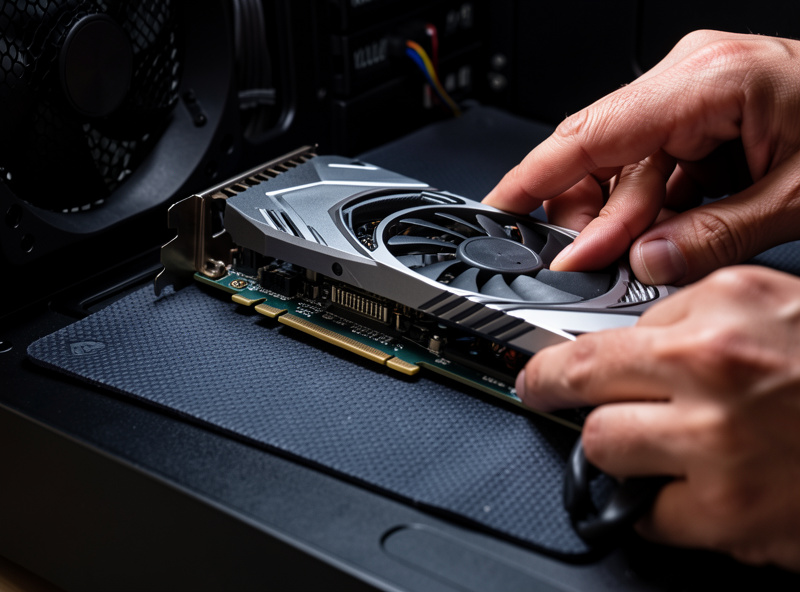
MSFS 2024 is heavily CPU-bound in the situations that matter most: complex airports, dense AI traffic, and detailed glass-cockpit airliners all lean on the main simulation thread. The GPU sets your resolution and visual settings; the CPU sets whether the sim can keep up while it does. On my deck, swapping from a 6-core to an 8-core X3D chip lifted minimums far more than any GPU change did.
The practical rule is this. If you fly default GA aircraft over rural scenery, you are usually GPU-bound and a better card pays off. If you fly study-level airliners into hand-crafted hub airports with live traffic, you are usually CPU-bound, and a faster card barely moves your minimums while a faster CPU transforms them. Most simmers who feel “stutter” are CPU-limited and keep buying the wrong part, which is exactly the trap I dig into in why your stutter usually isn’t the graphics card.
This is why a large CPU cache matters so much here. The Ryzen X3D chips with stacked cache consistently top MSFS frame-time charts because the simulation thread thrashes a lot of small data, and cache keeps it fed. It is the rare case where I will tell someone to buy the cache-heavy CPU before the flashier GPU.
Which GPU Tier Do You Need for 1440p?
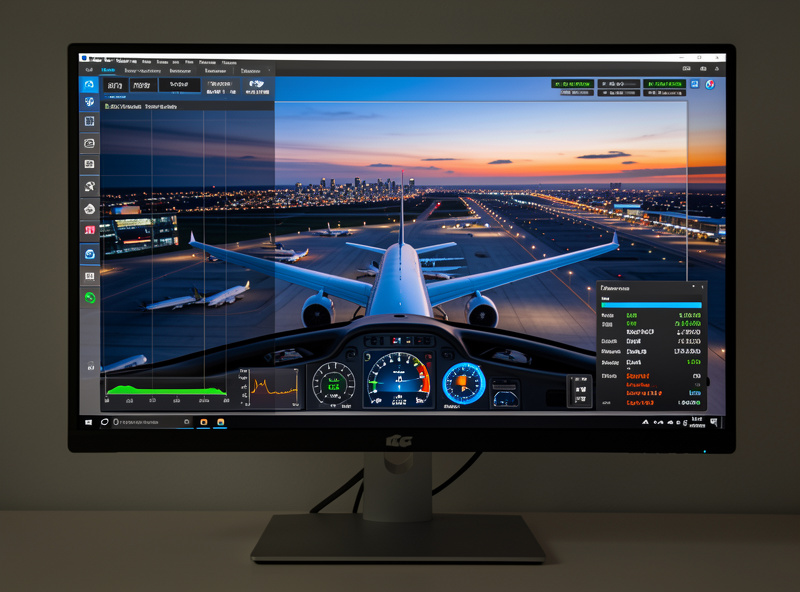
For 1440p flight sim, an RTX 4070 Super (12GB) is the value sweet spot, delivering 45 to 65fps at high settings in most flying. Step up to an RTX 4070 Ti Super (16GB) or 4080-class card if you want maxed terrain detail and render scaling above 100%, and step down to an RTX 4060 Ti 16GB only if you accept medium settings and lower render scale.
VRAM is the quiet decider at 1440p. The sim’s terrain and texture streaming will happily fill 10GB and spill past it with high render scaling and ultra textures, and when it spills you get exactly the stutter you were trying to avoid. That is why I steer people away from 8GB cards for a serious 1440p deck even when their raw horsepower looks adequate on a benchmark chart. There is more nuance in my dedicated breakdown of the best GPU tier for 1440p flight sim, including where the VRAM cliff actually bites.
| GPU Tier | VRAM | 1440p Experience | Best For |
|---|---|---|---|
| RTX 4060 Ti 16GB | 16GB | Medium-high, ~35-45fps | Budget 1440p, GA flying |
| RTX 4070 Super | 12GB | High, ~45-65fps | The value sweet spot |
| RTX 4070 Ti Super | 16GB | High-ultra, ~55-75fps | Maxed terrain, render scale |
| RTX 4080 Super | 16GB | Ultra, headroom to spare | 4K-curious, VR-ready |
| RTX 4090 / 5090-class | 24GB+ | Overkill at 1440p | 4K and high-res VR |
Notice that the bottom two rows stop being about 1440p at all. Once you are on a 4070 Ti Super, more GPU only matters if you move to 4K or VR, because at 1440p the CPU caps you long before the card runs out of breath. That is the trap in GPU-first build advice: it sells you frames your processor cannot deliver.
Is 32GB or 64GB of RAM Worth It?
32GB of RAM is the correct amount for almost every flight sim build in 2026. MSFS 2024 typically uses 16 to 24GB in heavy scenarios, so 32GB leaves working headroom for the OS, a browser full of charts, and tools like Little Navmap. 64GB only earns its place if you run heavy add-on suites, multiple monitors of charts, and streaming software all at once.
I run 32GB on my main deck and have never hit a wall in normal flying. The one time more RAM genuinely helps is the kitchen-sink loadout: a study-level airliner, a busy online network, photogrammetry scenery, a moving-map app, OBS recording, and a dozen browser tabs. If that is your daily setup, 64GB stops the swapping. For everyone else it is money that would buy more frames as a better GPU or CPU. I weigh the exact trade in the honest 32GB vs 64GB answer.
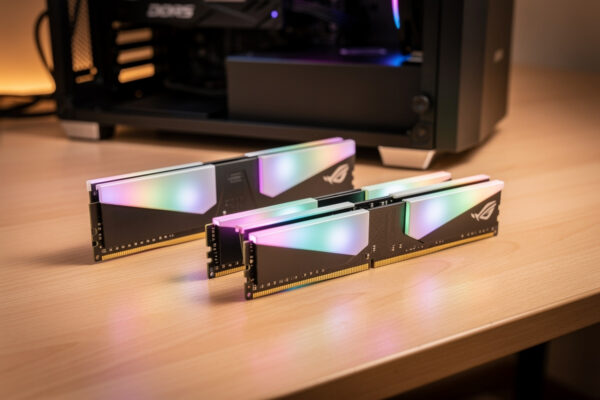
One thing that does matter regardless of capacity is memory speed and running in dual-channel. On the X3D platform, fast DDR5 in a matched two-stick kit feeds that cache-hungry simulation thread, and a mismatched single stick will quietly cost you minimums. Buy a matched kit, enable the rated profile in BIOS, and check it actually applied.
How Much More PC Does VR Need?
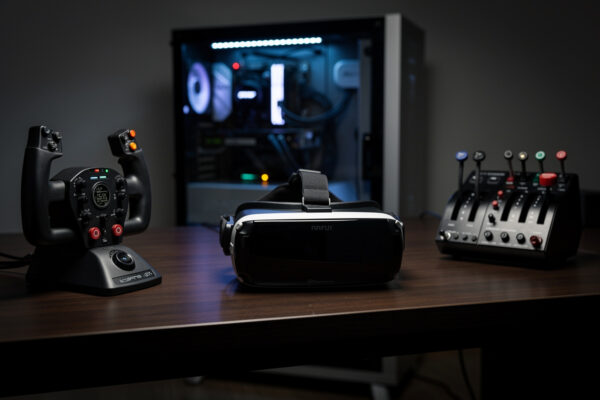
VR roughly doubles the GPU demand of flight sim because the card renders two high-resolution views many times per second with no tolerance for stutter. A build that is comfortable at 1440p flat will struggle in VR, so I treat VR as its own requirement tier: an RTX 4080-class GPU is the realistic entry point for smooth headset flying.
The reason is brutal and simple. On a monitor a dropped frame is a stutter you notice; in a headset a dropped frame is nausea you feel in your stomach. The bar for “smooth enough” is far higher, and the sim has to hold it across two eye buffers at headset-native resolution. That is why my VR flying lives on the strongest card in the house while my flat-screen deck is happy on a tier less.
If VR is your goal, plan the whole build around it from the start rather than bolting a headset onto a 1440p machine and hoping. The CPU still matters for the same airliner-and-airport reasons, but the GPU and its VRAM become the gating part, and 16GB is the floor I would accept for a headset deck. I go deeper on the specifics in my guide to the VR flight sim requirements jump.
Can You Build a Good Budget Flight Sim PC?
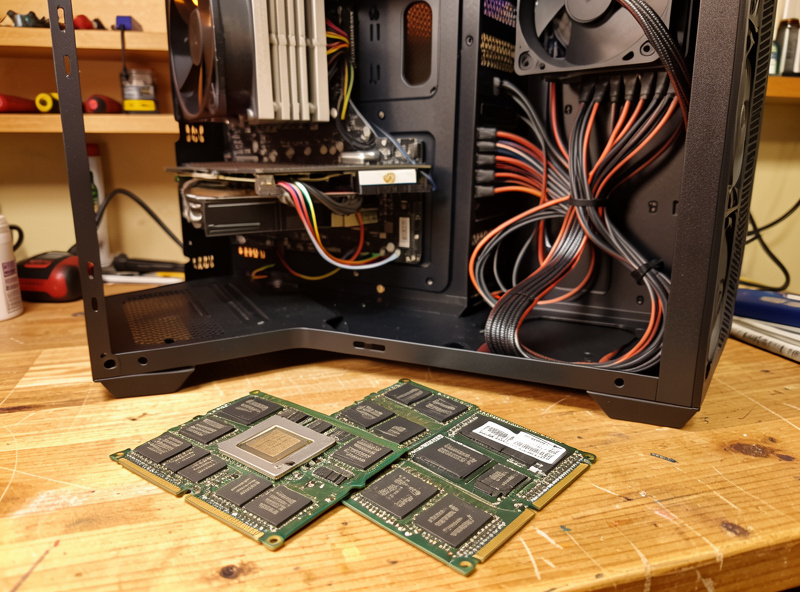
Yes. A budget flight sim PC built around a Ryzen 5 7600, an RTX 4060 Ti 16GB, and 32GB of DDR5 flies MSFS 2024 well at 1080p high and 1440p medium for roughly half the cost of an enthusiast deck. The key is spending the limited budget where the sim feels it: cache-capable CPU, enough VRAM, and a fast SSD, in that order.
The mistake I see on a budget is the 8GB GPU bought for its benchmark score. It will look great in a generic gaming chart and then stutter the moment MSFS terrain streaming fills its VRAM. The 16GB version of a lower card almost always gives a better sim experience than the 8GB version of a slightly faster one. Trust the streaming behavior over the synthetic number.
The other budget non-negotiable is an NVMe SSD with the sim installed on it. MSFS streams scenery from disk constantly, and a slow drive turns into pop-in and micro-stutter on the very approaches you care about. A 1TB or 2TB NVMe is cheap insurance and the single best small upgrade for a stuttery older build. I lay out the complete parts list in the budget flight sim PC build that actually works.
What Resolution and Monitor Should the Build Target?
A single 1440p monitor is the smartest target for most flight sim builds because it doubles the detail of 1080p without the GPU and CPU penalty of 4K. Flight sim rewards screen real estate and clarity more than raw resolution, so a 27-inch or 34-inch ultrawide at 1440p gives more usable immersion per krona than a 4K panel that halves your frame-rate.
The reason ties straight back to the bottleneck discussion. 4K is almost entirely a GPU load, and at 1440p you are already CPU-capped in the busy scenarios, so jumping to 4K often costs you a third of your frames to render pixels you barely register while panning around a cockpit. An ultrawide at 1440p, by contrast, widens your peripheral view, which is exactly what helps in the pattern and on approach where you are scanning out the side windows.
If you are weighing a triple-monitor wraparound instead, understand it multiplies the GPU and CPU cost the same way extra resolution does, and it adds bezel and configuration headaches. On my deck a single ultrawide plus head tracking gives most of the situational awareness of triples for a fraction of the hardware and fuss, which is why I rate head tracking as the best-value immersion upgrade before any monitor splurge. I would build around one good 1440p panel first and only chase triples once the core machine is comfortable.
Which In-Sim Settings Actually Move Frame-Times?
Three settings dominate flight sim performance: terrain level of detail, render scaling, and traffic density. Pulling terrain LOD and render scaling back from ultra to high typically recovers 20 to 30 percent of your frame-time budget with almost no visible loss at normal viewing distance, while cutting AI and online traffic eases the CPU in exactly the airports that hurt most.
I tune mine in that order every time. Terrain LOD is the biggest single lever because it controls how much of the surrounding world the sim streams and draws, and pushing it to the maximum is the classic way people cripple an otherwise capable build chasing a screenshot. Render scaling above 100 percent is a supersampling tax that looks lovely in a paused screenshot and quietly eats the headroom you need for a stutter-free approach. Traffic is the CPU lever: if a big airport hitches, halve the traffic before you touch anything else.
The settings that barely matter, by contrast, are the ones people obsess over: shadows a notch lower, ambient occlusion, and most of the post-processing toggles cost little and you will not see them in flight. Spend your settings budget on terrain, scaling, and traffic, leave the rest near their defaults, and you will get a smoother deck than someone who maxed everything and then wonders why the sim stutters. This is where reading your own frame-time graph beats copying anyone else’s settings list, mine included.
How Do You Match Your PC to How You Actually Fly?
Build for your real flying, not your aspirational flying. If your honest logbook is GA hops and scenery touring, weight the budget toward the GPU and a clean 1440p monitor. If it is study-level airliners into hub airports with online traffic, weight it toward the cache-heavy CPU and fast RAM, because that is where your stutter actually comes from. The same “spend where it counts” logic drives my whole flight sim hardware upgrade order, of which the PC is only the foundation.
I have watched plenty of simmers spend a 4080 budget chasing frames their CPU could never deliver, then wonder why the big airport still hitches. The fix was never a bigger card. Decide where you fly first, find your bottleneck, and spend there. That single habit will save you more money and immersion than any specific part recommendation in this guide.
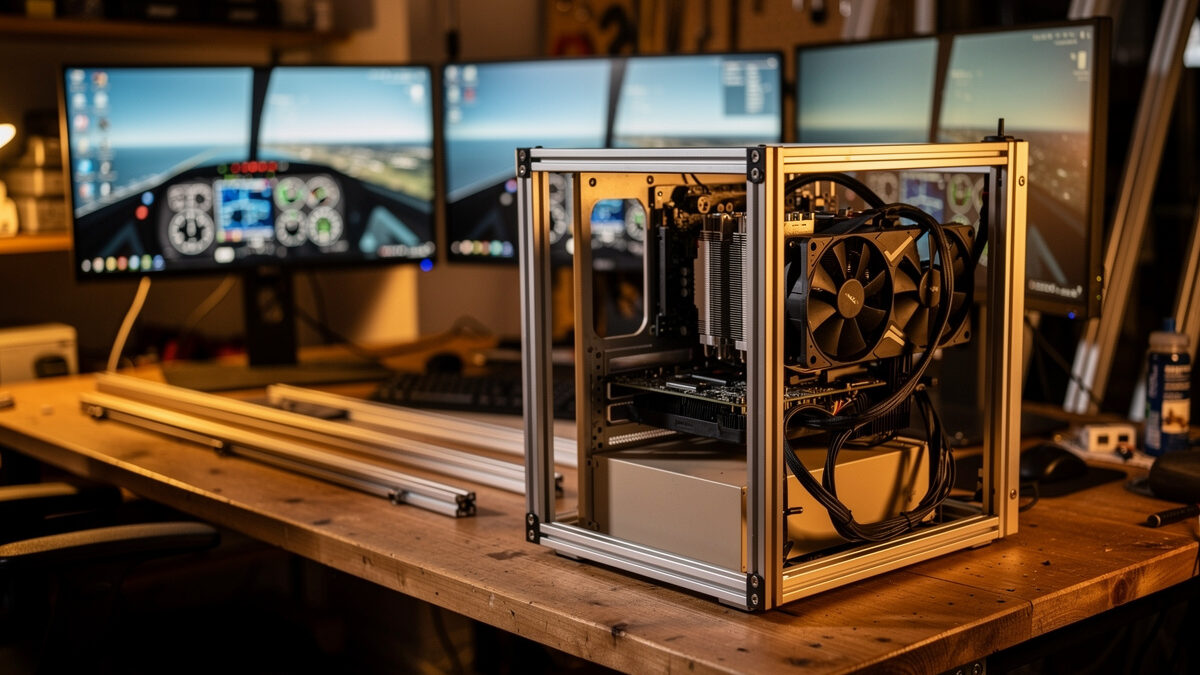
My own build journey followed exactly this path, and I made the GPU-first mistake before I learned to read frame-times. The racing rig taught me the discipline first: same lesson, different sim. You measure, you find the limiting part, you spend there, and you ignore the marketing that tells you everything is essential. Aluminum profile, projector throw, and a frame-time graph do not care whether the screen shows a corner at Spa or a localizer into a fogged-in hub.
So if you are starting today, here is what I would do in order. Decide your dominant loadout. Buy the cache-heavy 8-core CPU and a matched 32GB DDR5 kit. Buy a 12GB or 16GB GPU sized to 1440p, not to a benchmark. Put the sim on a fast NVMe. Get a single good 1440p panel and add head tracking before you ever think about triples or the VR requirement jump. Then fly it for a month, read your own frame-times, and only then decide what the next krona should buy. That sequence has never let me down, and it is the whole doctrine of this site compressed into one paragraph.
Frequently Asked Questions
What is the minimum PC to run MSFS 2024 at 1440p?
A 6-core CPU, a 12GB GPU like an RTX 4070 Super, and 32GB of DDR5 RAM run MSFS 2024 well at 1440p high settings, holding 45 to 65fps with frame-times in the low 20-millisecond range away from heavy photogrammetry.
Is flight sim more CPU or GPU bound?
MSFS 2024 is CPU-bound in complex airports, dense traffic, and study-level airliners, and GPU-bound for default GA aircraft over rural scenery. Most simmers feeling stutter are CPU-limited, so a cache-heavy CPU often fixes more than a bigger card.
Is 64GB of RAM worth it for flight sim?
For most builds, no. 32GB is correct because MSFS 2024 typically uses 16 to 24GB. 64GB only helps if you run heavy add-ons, multiple chart monitors, and streaming software all at once, which is a minority loadout.
How much more powerful does a VR flight sim PC need to be?
VR roughly doubles the GPU demand because the card renders two high-resolution views with no tolerance for stutter. An RTX 4080-class GPU with 16GB of VRAM is the realistic entry point for smooth headset flying.
Does flight sim transfer to real flying?
No. Flight sim PC building and sim flying are hobbies for immersion and enjoyment. Nothing here builds real-world piloting skill or counts toward training. Real flight requires instruction from a licensed flight instructor, and you should always defer to certified professionals.
What is the single best small upgrade for a stuttery flight sim PC?
Move the sim onto a fast NVMe SSD. MSFS 2024 streams scenery from disk constantly, so a slow drive causes pop-in and micro-stutter on approach. A 1TB or 2TB NVMe is cheap and the best targeted fix for an older build.
Related Guides
- MSFS 2024 System Requirements: The Real Numbers vs the Spec Sheet
- The Best GPU for 1440p Flight Sim: VRAM Is the Real Decider
- CPU vs GPU Bound in Flight Sim: Why Your Stutter Isn’t the Card
- 32GB vs 64GB RAM for Flight Sim: The Honest Answer
- VR Flight Sim PC Requirements: The Jump Nobody Warns You About
- The Budget Flight Sim PC Build That Actually Works
Related Guides — Complete Spoke List
Full spoke list of the PC Builds cluster:
- “The Budget Flight Sim PC Build That Actually Works”
- “VR Flight Sim PC Requirements: The Jump Nobody Warns You About”
- “32GB vs 64GB RAM for Flight Sim: The Honest Answer”
- “CPU vs GPU Bound in Flight Sim: Why Your Stutter Isn’t the Card”
- “The Best GPU for 1440p Flight Sim: VRAM Is the Real Decider”
- “MSFS 2024 System Requirements: The Real Numbers vs the Spec Sheet”
More From This Site
Other guides across pc builds and the rest of the Flightdecksource library:
- “The Budget Flight Sim PC Build That Actually Works”
- “VR Flight Sim PC Requirements: The Jump Nobody Warns You About”
- “32GB vs 64GB RAM for Flight Sim: The Honest Answer”
- “CPU vs GPU Bound in Flight Sim: Why Your Stutter Isn’t the Card”
- “The Best GPU for 1440p Flight Sim: VRAM Is the Real Decider”
- “MSFS 2024 System Requirements: The Real Numbers vs the Spec Sheet”
- “The Real Cost of Switching Yoke to Stick Later”
- “Curves and Deadzones: Making Any Flight Sim Controller Disappear”
- “The Helicopter Question: Why a Stick Is Only Part of the Answer”
- “Airliner Control Logic: Why the Airbus Uses a Sidestick”
- “Why GA Aircraft Want a Yoke: The Control-Column Argument”
- “Yoke or Stick for MSFS 2024: The Most Common Wrong Purchase”
- “Yoke vs Stick for Flight Sim: Which to Buy for the Aircraft You Actually Fly”
- “The Flight Sim Upgrade Procrastination Trap: When Buying Gear Becomes the Hobby”
- “Flight Sim Hardware Budget: What $200 vs $600 Actually Buys You”
- “Head Tracking: The Best-Value Flight Sim Upgrade Nobody Talks About First”
- “HOTAS vs Yoke: Which Should Be Your First Flight Sim Purchase?”
- “First Flight Sim Hardware After the Keyboard: What to Buy Before Anything Else”
- “Rudder Pedals Before a Better Yoke: The Upgrade Most Simmers Get Backwards”
- “The Flight Sim Hardware Upgrade Order: Where Every Krona Buys the Most Realism”